
Introduction
A downloaded puzzle file prints better when the image is sharp, the size is right, and the paper matches the use case. Jigsawify can help you create downloadable files such as PDF or PNG; the actual printing happens on your own printer or through a local print service.
This guide covers the decisions that prevent most print mistakes before you spend paper or money.
DPI in one sentence
DPI means dots per inch. For clean lines and readable detail, 300 DPI is the safe standard.
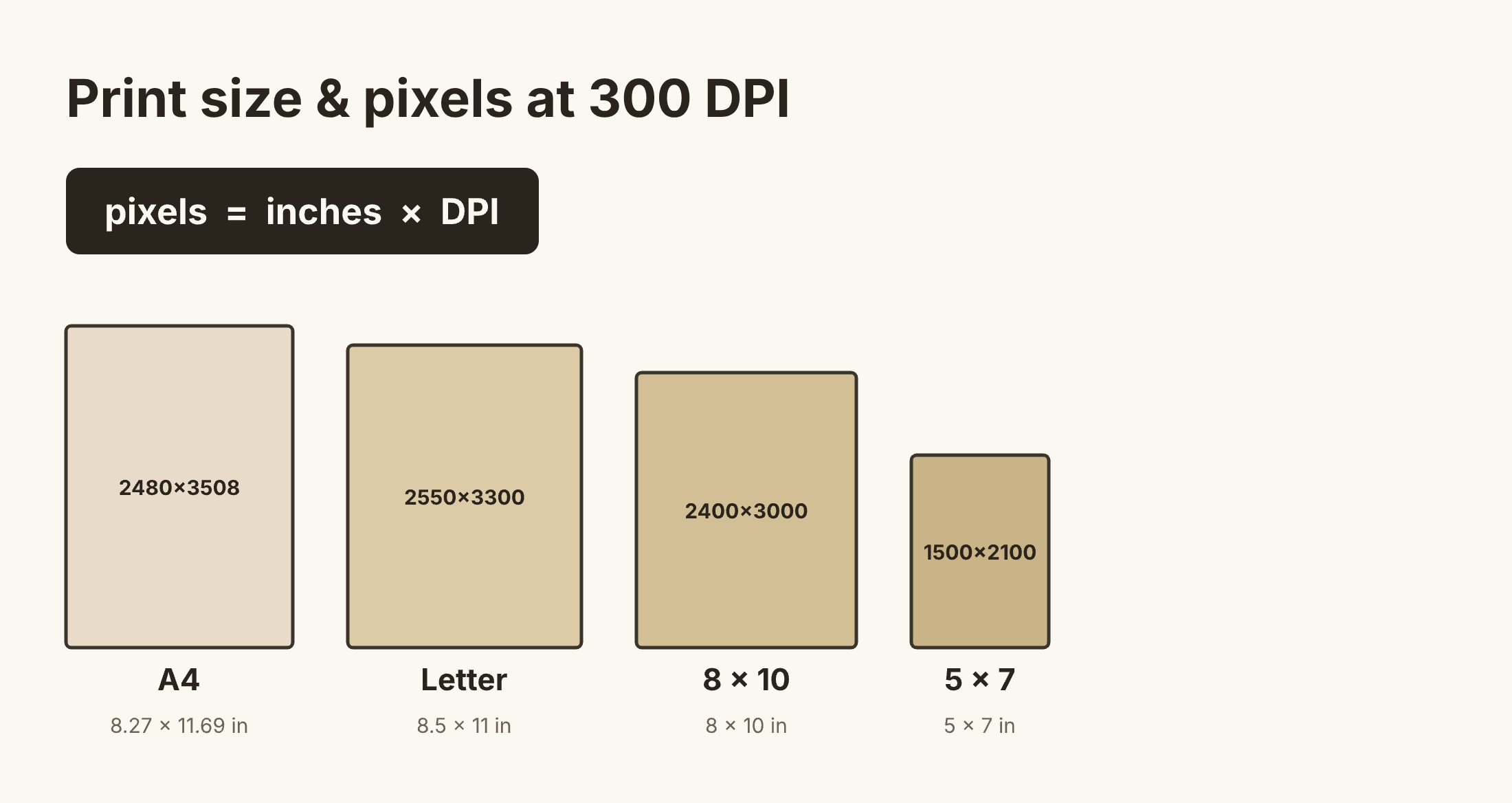
pixels = inches × DPISo a sharp Letter-size print needs about 2550 × 3300 pixels. Here are the common sizes:
| Size | Pixels (approx.) |
|---|---|
| Letter (8.5 × 11) | 2550 × 3300 |
| A4 (8.27 × 11.69) | 2480 × 3508 |
| 8 × 10 | 2400 × 3000 |
| 5 × 7 | 1500 × 2100 |
Decide the final print size before you resize the image. Resizing after the fact is the fastest way to lose sharpness. If your file is below the target pixels, choose a smaller print size rather than stretching it.
Match piece count to paper size
- Letter / A4: 20–60 pieces for quick activities
- A3: 60–120 pieces for longer play
- Small (5 × 7): fewer, larger pieces
Leave a 3–5 mm margin around the edge so cutting is clean and borderless printing doesn't trim important detail.
Choose the right paper
| Paper | Weight | Best for |
|---|---|---|
| Cardstock | 200–300 gsm | Durable keepsakes, classroom reuse |
| Standard paper | 80–120 gsm | Cheap, high-volume classroom sets |
| Matte finish | — | Less glare while solving |
| Glossy finish | — | Richer color, but reflects light |
Pick the finish based on where it'll be solved — matte for bright classroom lighting, glossy for a home table.
Print settings that matter
- Scale: 100% — never "fit to page" (the #1 reason pieces don't line up later)
- Quality: high or best
- Color: use your normal photo profile; turn off automatic "enhancement" if tones look unnatural
If you send the file to a local print shop, ask them not to resize it unless you explicitly want a different final size. "Fit to page" sounds harmless, but it changes the relationship between the image, cut guides, and margins.
Image prep, in the right order
The order matters more than the edits themselves:
- Crop to the final ratio (Letter, A4, 5×7…)
- Correct exposure so highlights and shadows are both readable
- Sharpen lightly — only after resizing
- Check at 100% zoom to confirm fine detail isn't mushy
Prints come out slightly darker and less saturated than your screen, so a small brightness and saturation bump usually helps.
When to use PDF vs PNG
Use PDF when you care about page size, margins, and a predictable print layout. It is usually the safer choice for classroom packets, handouts, or anything you will print more than once.
Use PNG when you need a quick image file for a document, slide, worksheet, or visual preview. PNG is also convenient when you want to place the puzzle image inside another design before printing.
If you are making a file for laser cutting or CNC, use SVG or DXF instead. Those formats are for fabrication paths, not normal home printing.
Test one before you print a batch
Print a single sample and check: are small details clear, are cut lines visible but not distracting, does the color look close to the source? Only run the full quantity after one good sample. For repeated runs, save your settings as a preset so quality stays consistent.
For classroom or event use, also test the solving experience. A file can look sharp and still be annoying if the piece count is too high for the paper size. If students or guests will cut pieces by hand, use fewer, larger pieces.
Quick troubleshooting
- Looks blurry: image is too small for your print size
- Edges look soft: compression is too high
- Pieces tear easily: paper is too thin — move to cardstock
- Colors look off: print a test page and adjust saturation before the full run
- Cut guides are clipped: increase margins or disable automatic page scaling
- The activity takes too long: reduce the piece count before exporting again


